This article will help you connect your 360Learning LMS to Incentli, so your learners can earn and redeem rewards without leaving 360Learning.
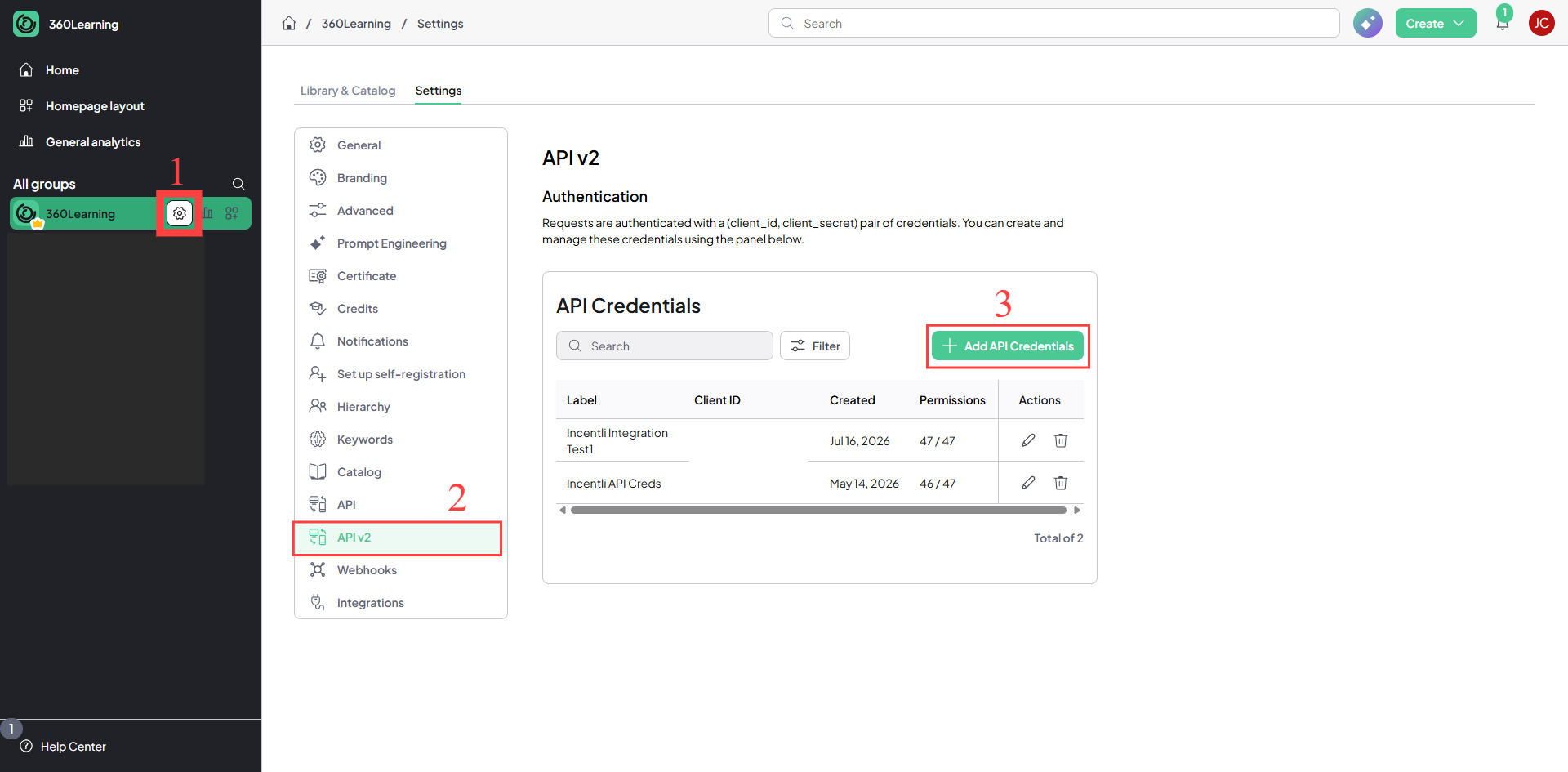
Step 1: Generate your 360Learning API credentials
- In 360Learning, open your account settings and locate your API credentials.
- If you don’t already have them, generate a new Client ID and Client Secret.
- Copy both and store them somewhere safe. You’ll need them in Step 4.
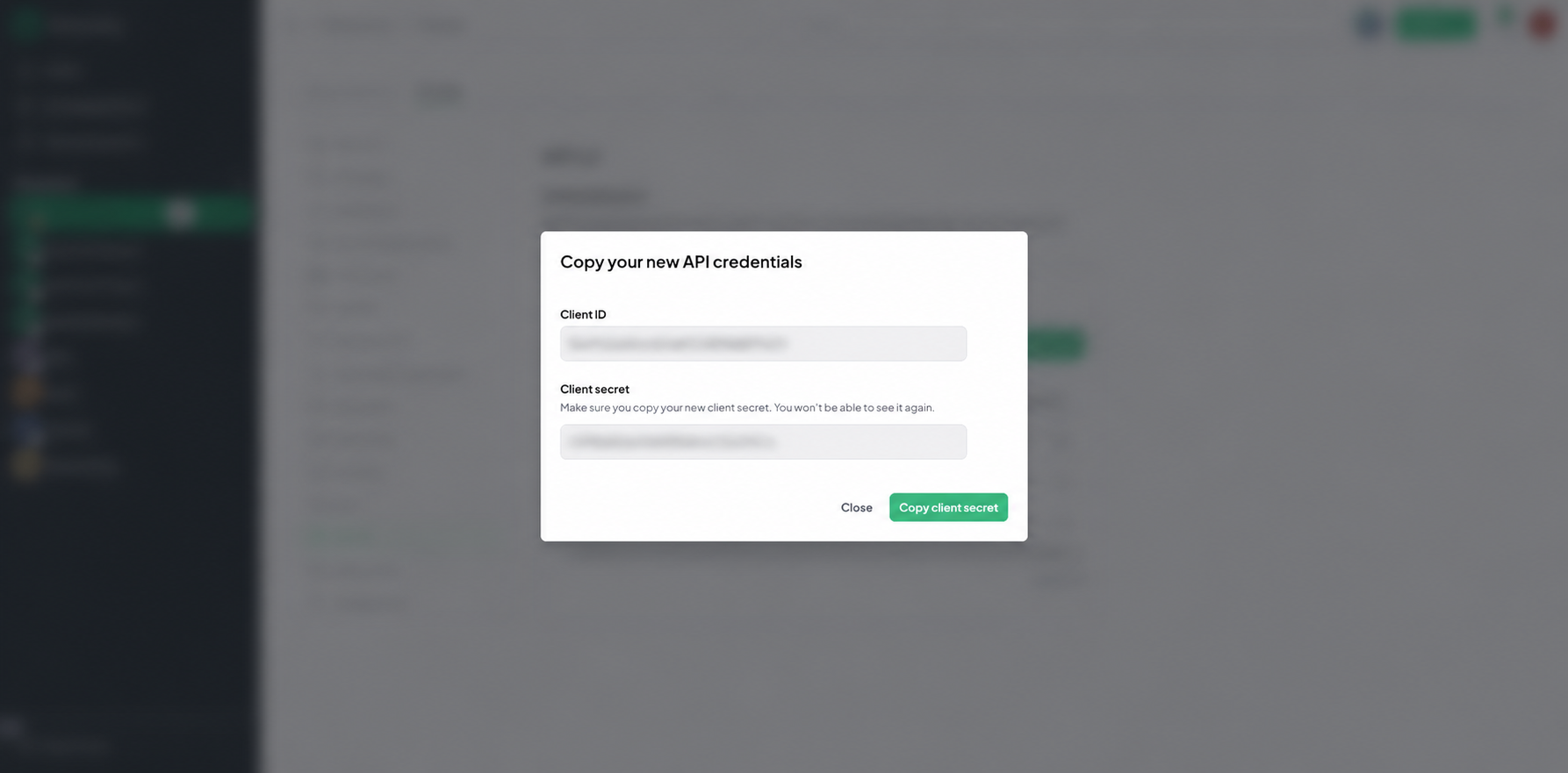
Be sure to save and store your Client ID and Client Secret in a safe place.
Step 2: Open the Incentli setup page and choose your region
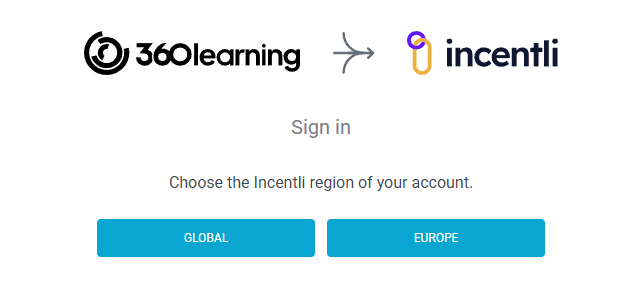
- Go to https://360learning.incentli.com/login
- Choose the region where your Incentli account will be hosted (Global/North America or Europe).
Step 3: Create your Incentli account
- Create your Incentli account.
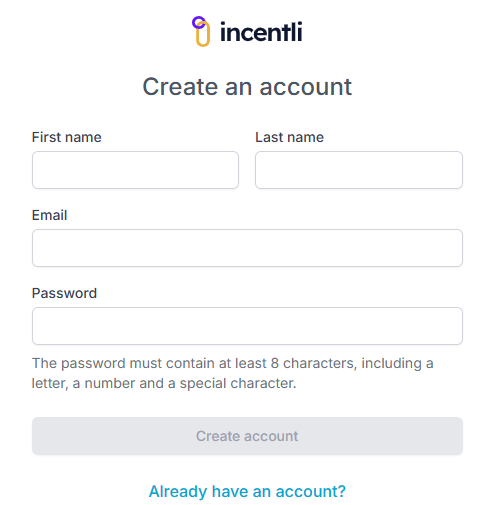
Step 4: Enter your 360Learning region and API credentials
- Select your 360Learning region.
- Enter the Client ID and Client Secret you generated in Step 1.
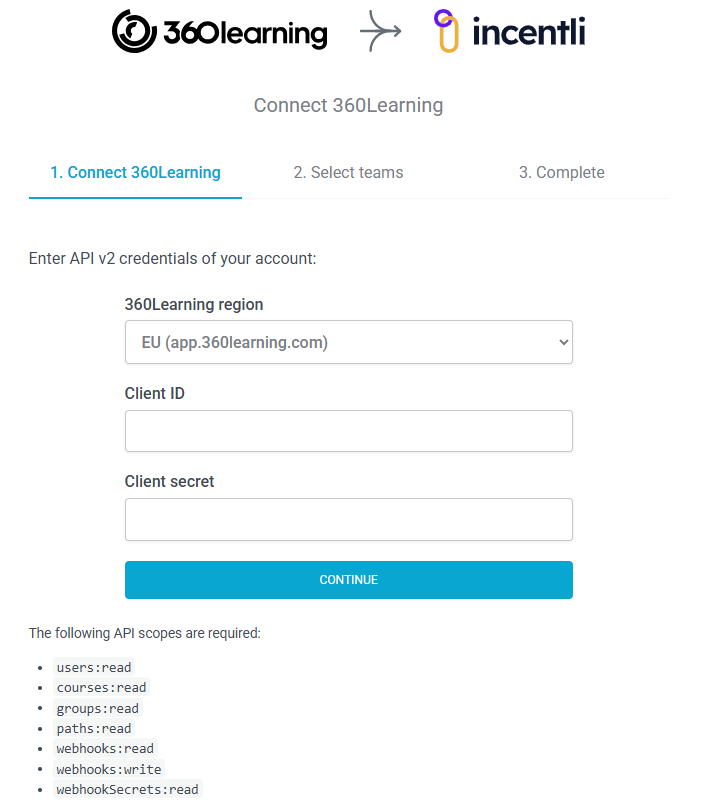
Important: Be sure to select the correct 360Learning region. Choosing the wrong region will prevent Incentli from connecting.
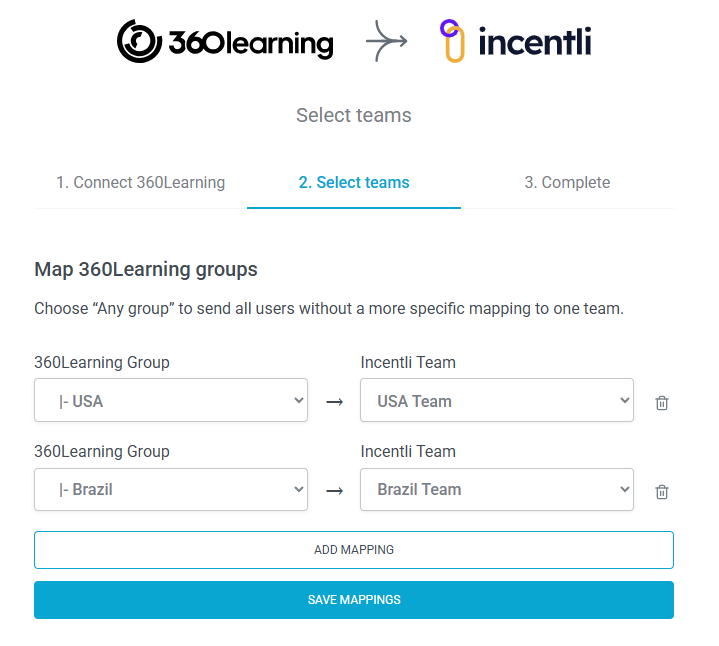
Step 5: Map your 360Learning groups to Incentli teams
- Map each 360Learning Group to an Incentli Team. You may need to create the Teams on the Incentli side first.
- Each Group can have its own dedicated rewards store and leaderboard.
- You can edit your Group-to-Team mapping at any time.
- When you’re finished, save your mappings and complete your connection.
Step 6: Add the rewards store to your 360Learning pages
- Copy the custom HTML code from Incentli.
- In 360Learning, paste it into an HTML widget on each page where you’d like the rewards store to appear.
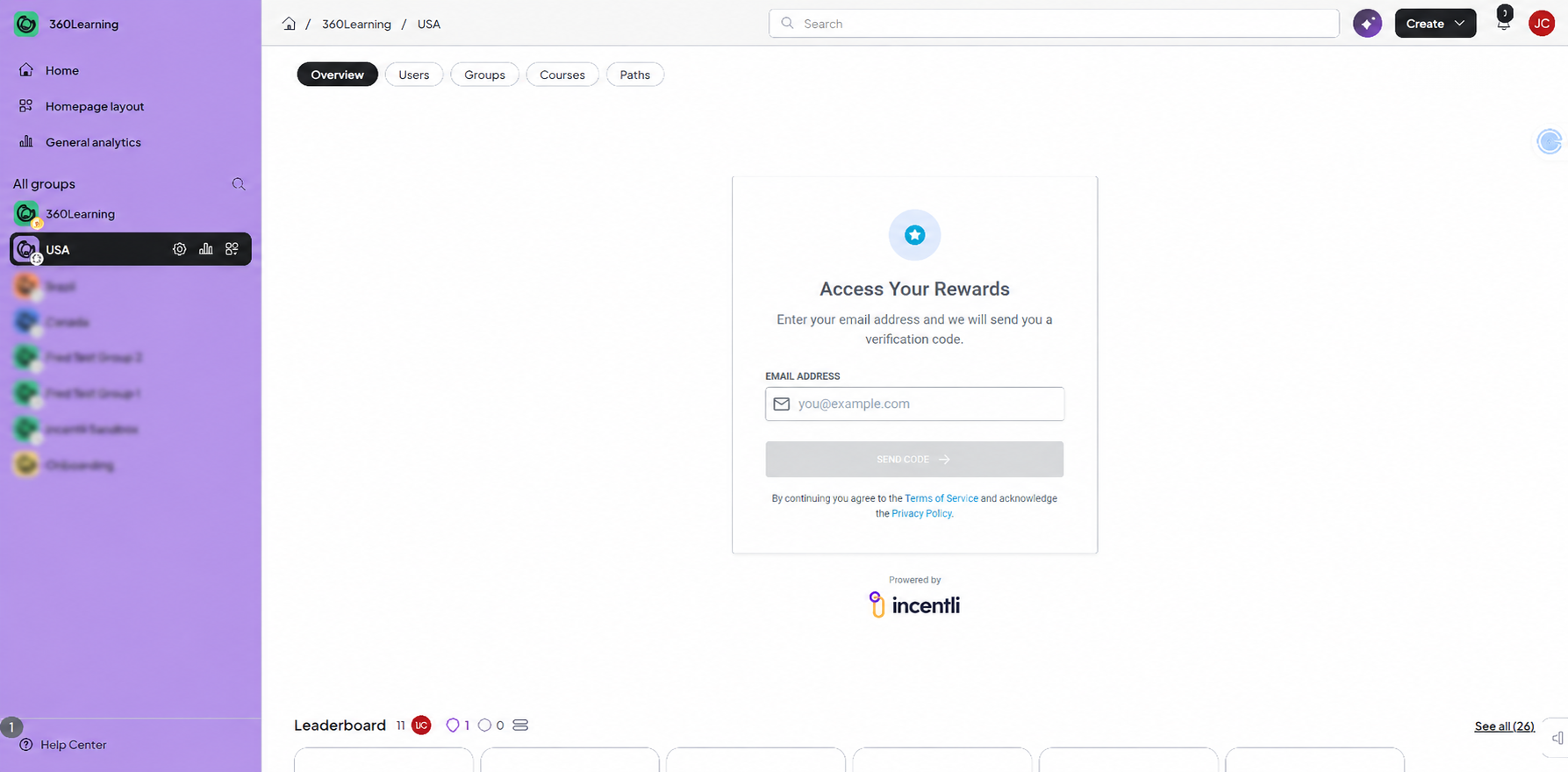
When connected, you’ll see this:
Learners enter their email address to receive a verification code that opens their rewards store. Their authentication token lasts 30 days, so they shouldn’t have to sign in very often.
Step 7: Configure your coin rules
- Set your coin rules. Default site-wide values are provided, and you can override them for specific paths or courses in your program.
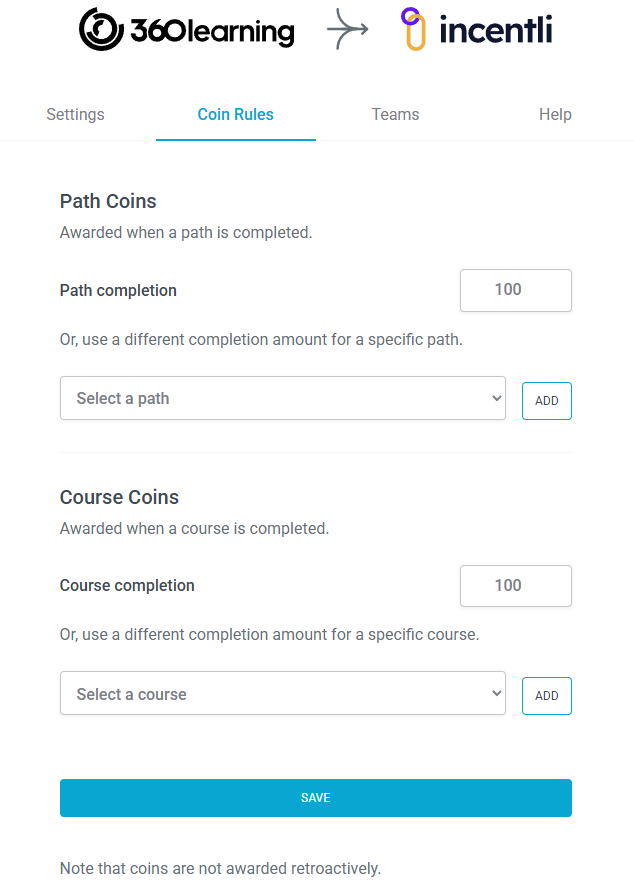
If you make changes, be sure to click SAVE.
Step 8: Manage your connection and get help
- Add or remove team mappings as needed.
- Edit the coin rules as needed (keep in mind, you can always change the cost of items in the reward store).
- Access Incentli’s knowledge base and submit support tickets from here if you need help.
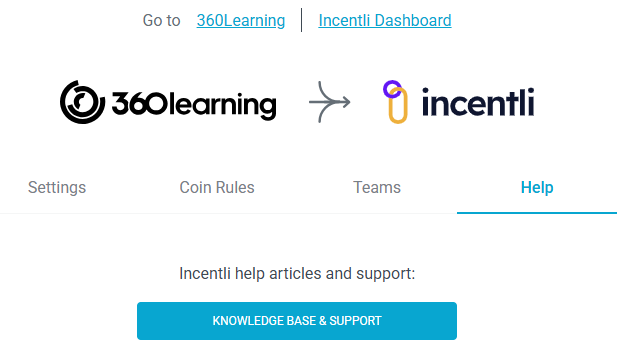
That’s it! Your learners can now earn and redeem coins in the Incentli rewards store, right inside 360Learning.
Troubleshooting: Made a mistake and want to start over? Add /unlink to the end of https://360learning.incentli.com/, and you can disconnect your 360Learning account from Incentli.
Was this article helpful?
That’s Great!
Thank you for your feedback
Sorry! We couldn't be helpful
Thank you for your feedback
Feedback sent
We appreciate your effort and will try to fix the article